
On this page
01Start with your workspace
- Sign in and open your workspace. Complete the setup assistant if it is shown.
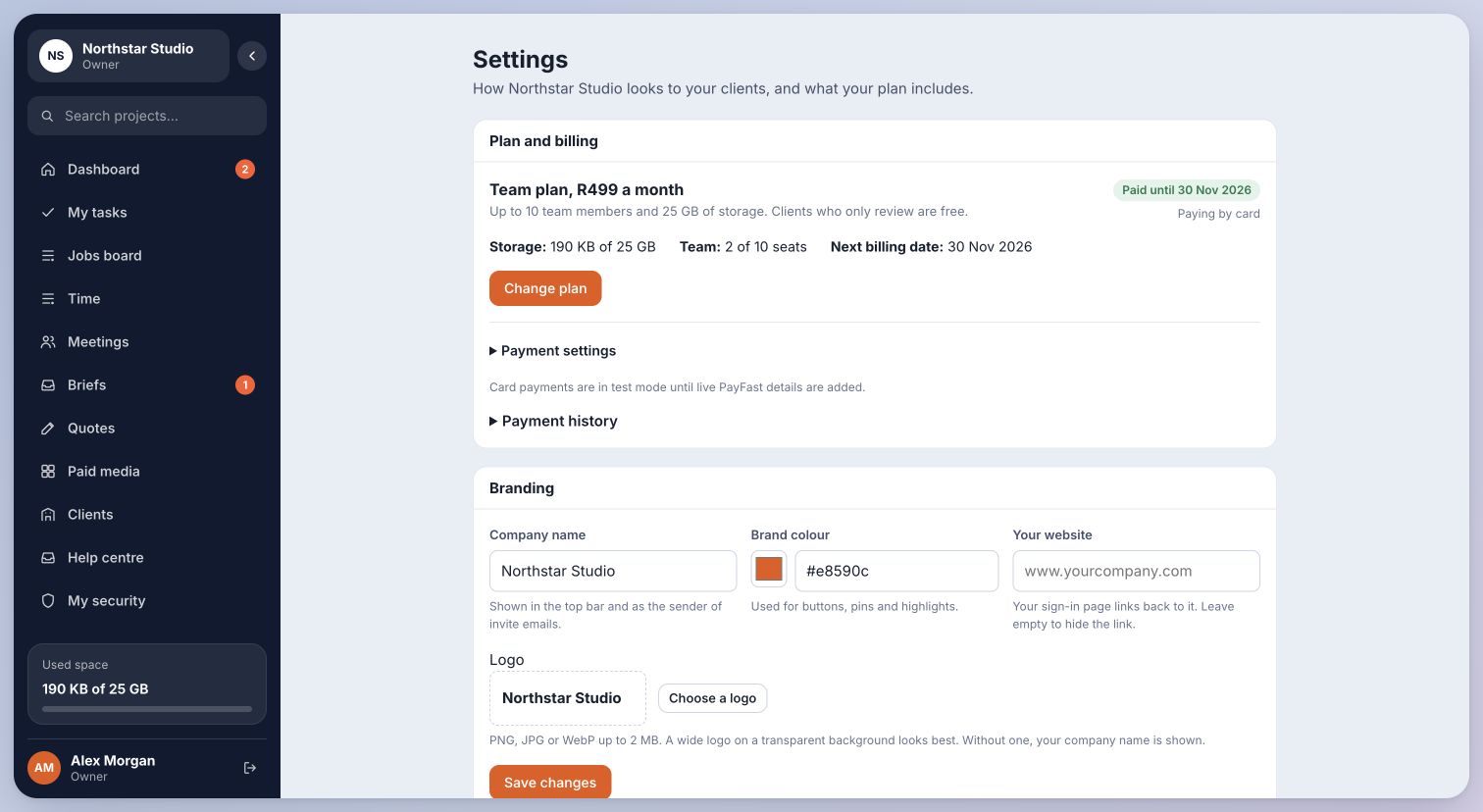
- Open Settings. Check the company name, brand colour and website under Branding. Upload a logo if you have one, then choose Save changes.
- Check Plan and billing to see your storage, team seats and next billing date.
- Open Team to invite colleagues. Then open Clients to create a client before adding that client’s brands.
Inside Cmd.Ctrl · Demo workspace
02Try a safe example
The Sample client tool in Settings can create a fictional client, brand, review project and content calendar. Use a separate email address you control for its client login. A sample client is part of your workspace and uses its storage; remove it when you no longer need it.
Your workspace address is reserved during sign-up for three hours while payment is outstanding. An expired reservation can be taken by someone else. A completed workspace keeps its assigned address.
You’re in the right place when…
Your team sees your company name and branding, and you are ready to add clients.
Last checked . Your role and plan determine which actions you see.