
On this page
01Check the upload
- Read the message next to the upload control. Different controls accept different file types and sizes.
- Check the file extension and try opening the file locally. Export a fresh copy if it is damaged.
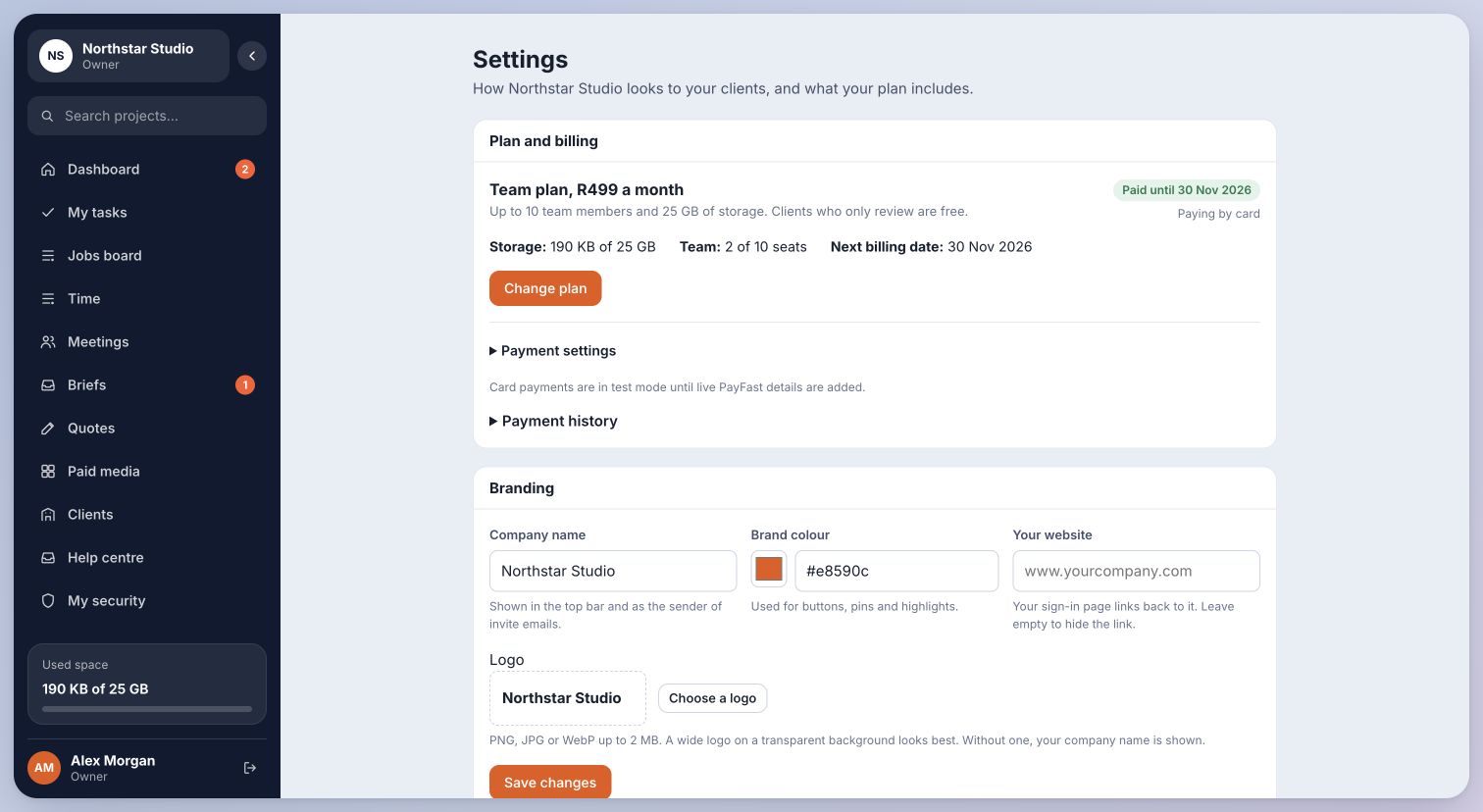
- Ask an owner to check storage in Settings. Uploads stop when workspace storage is full.
- If the connection failed, first check whether the item already appeared. Retry once after confirming it was not created.
Inside Cmd.Ctrl · Demo workspace
02If it keeps failing
Tell the platform team the file type, approximate size, page, time and exact error wording. Supply a dummy or non-confidential sample when possible.
Do not upload customer documents into a public support thread. Large videos may need more time to finish processing even after transfer completes.
You’re in the right place when…
You identify a file, capacity or connection issue and can provide useful details if support is needed.
Last checked . Your role and plan determine which actions you see.