
On this page
01If checkout does not load
The Solo trial uses R0 card verification. If you see an old R1 checkout or a PayFast 404, return to the current sign-up page and start a fresh checkout. Do not reuse an old checkout bookmark.
If PayFast still cannot load, contact the platform team with the time and displayed error. Do not submit your card details to a page outside PayFast’s expected secure checkout.
02If a plan change fails
- Read the message in Settings. A decline leaves the plan unchanged.
- If the message says the payment was received or the outcome needs confirmation, stop and keep the displayed reference. Do not make another payment.
- Contact the platform team so they can reconcile the PayFast result and the plan change.
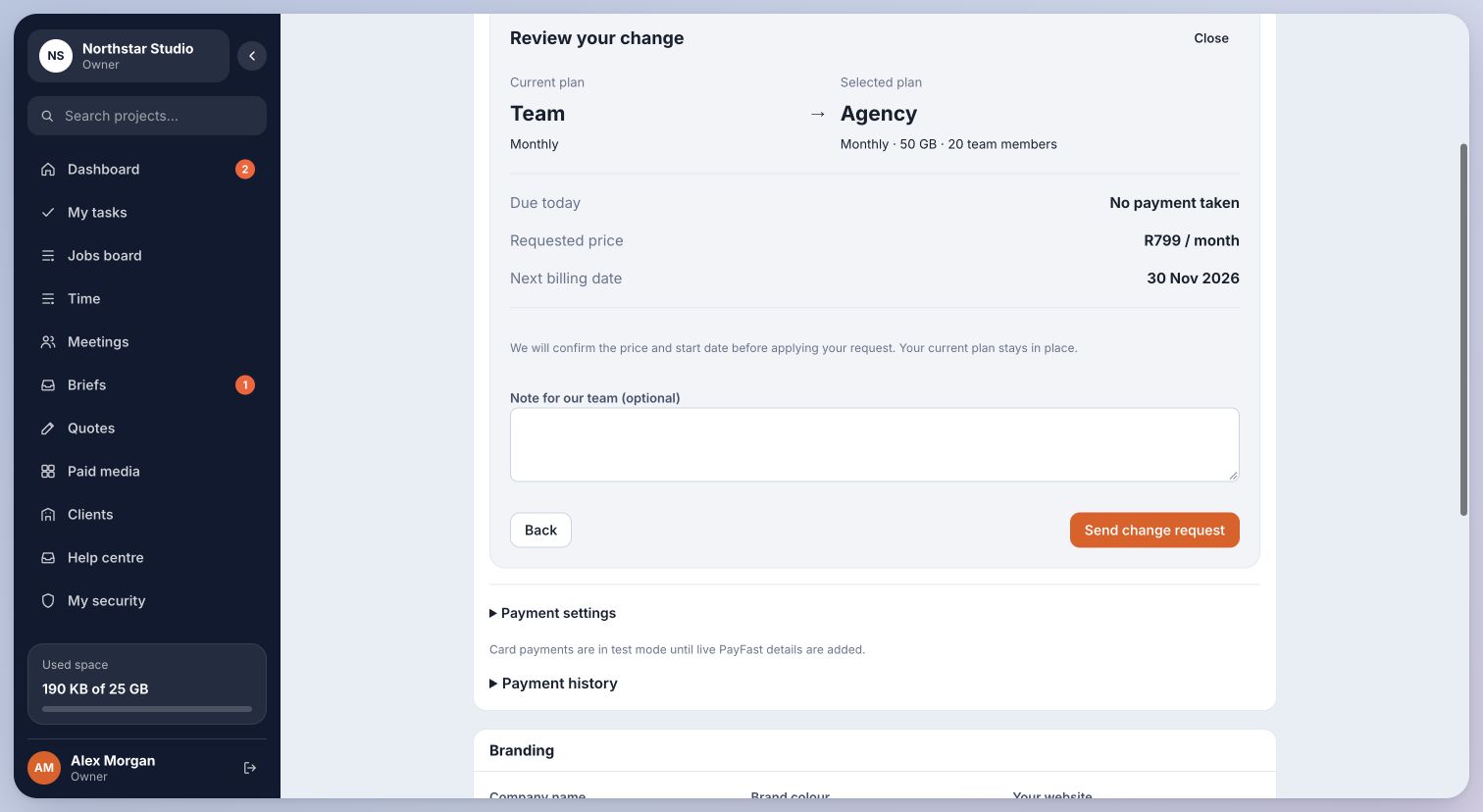
- If Send change request is offered, that action asks the team to help. It is not a second payment button.
03What to include in a support request
Send the workspace address, time, selected plan, reference and exact error message. A screenshot can help if you hide private account details.
Never send card numbers, CVV codes, passwords, authenticator codes or recovery codes. A return from checkout alone does not confirm that the subscription has been activated.
You avoid duplicate payments and give the platform team enough information to confirm what happened.
Last checked . Your role and plan determine which actions you see.