
On this page
01Correct the preview first
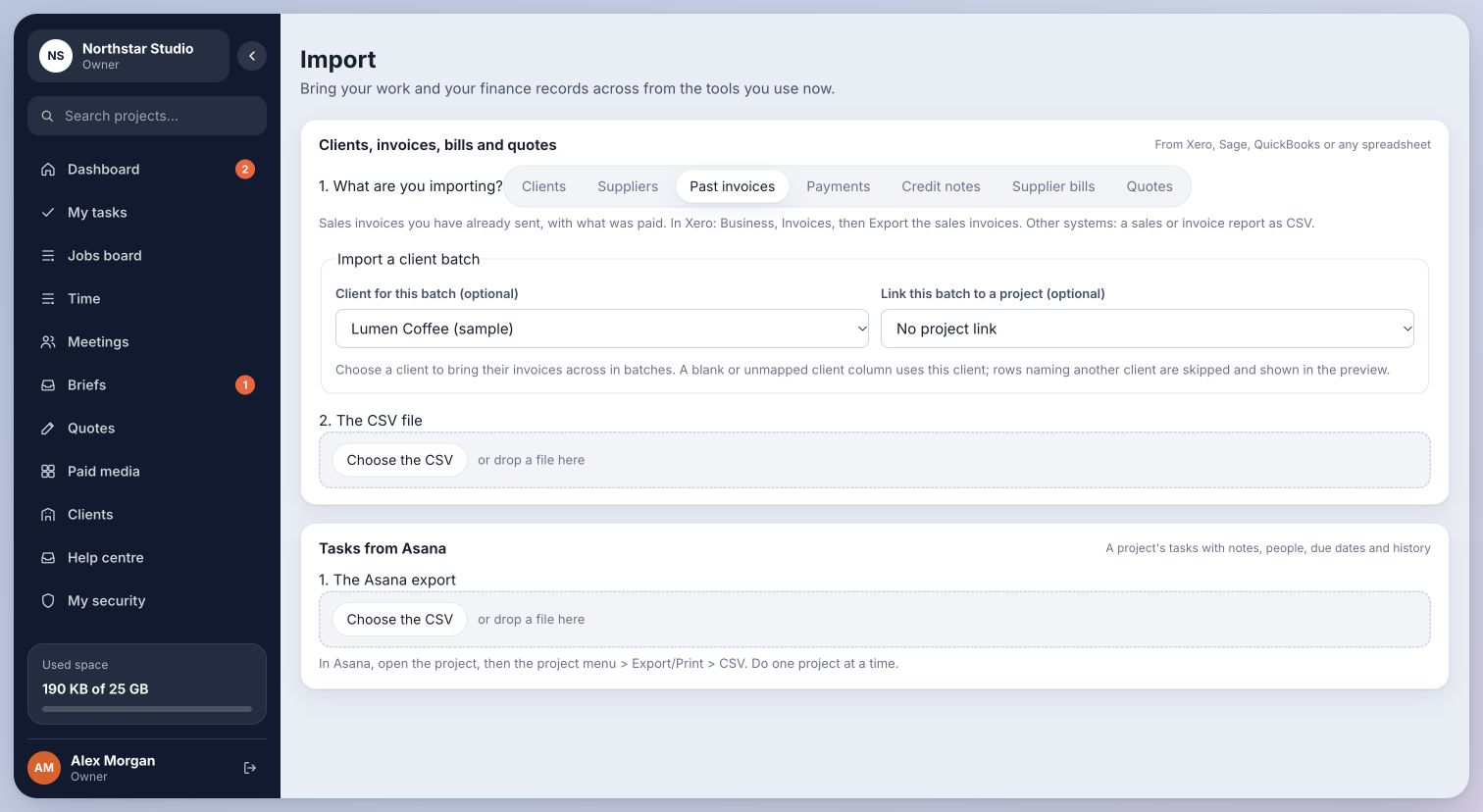
- Choose the intended record type. Invoice, bill and payment exports have different meanings.
- Check that the file is a CSV export with a header row, rather than a renamed Excel workbook.
- Map the columns to their intended fields. Inspect dates, currency amounts, record references and the selected client.
- For client-by-client invoice or bill batches, confirm the batch client before importing.
- Read rejected-row messages. Correct the source or mapping and preview again before confirming.
Inside Cmd.Ctrl · Demo workspace
02An Asana export has no Name column
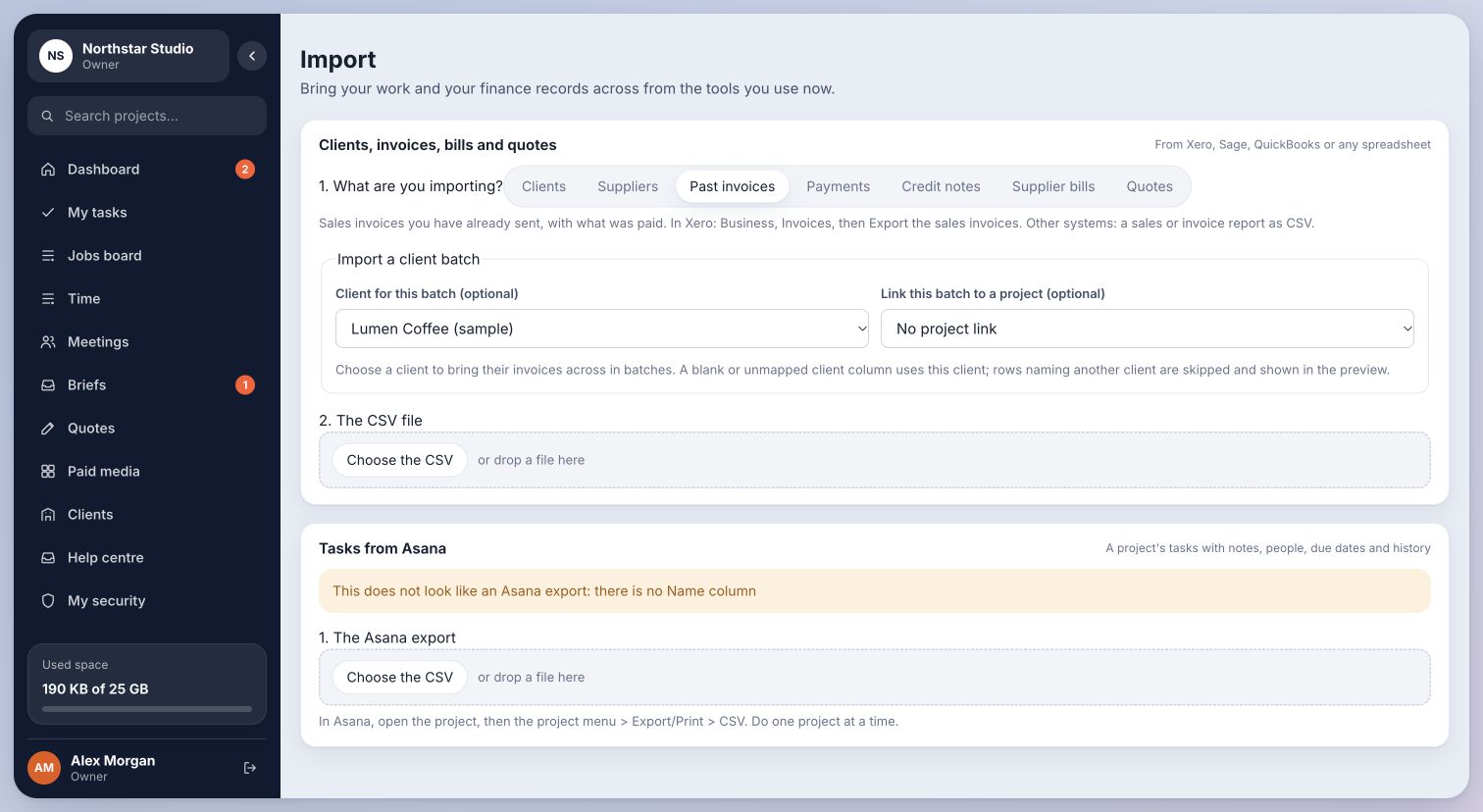
If the importer says “This does not look like an Asana export: there is no Name column”, check that you chose the Asana project export rather than an accounting CSV. Export the project again and retain the header row.
Inside Cmd.Ctrl · Demo workspace
03If an import stopped midway
Check the imported records and import result before trying again. Keep the original file and error message so the team can identify which rows were accepted.
Do not assume a failed screen means that nothing was saved, or that uploading the same file again is safe. If the outcome is unclear, ask support to check references and records first.
You’re in the right place when…
The preview matches the intended records, or you have paused safely for a check.
Last checked . Your role and plan determine which actions you see.